Appearance
How boards work
A Canvas board is a large, open surface for thinking. Put books, quotes, notes and your own ideas on it as cards, group them in frames, and draw connections between them. Everything on a board links back to the source it came from.
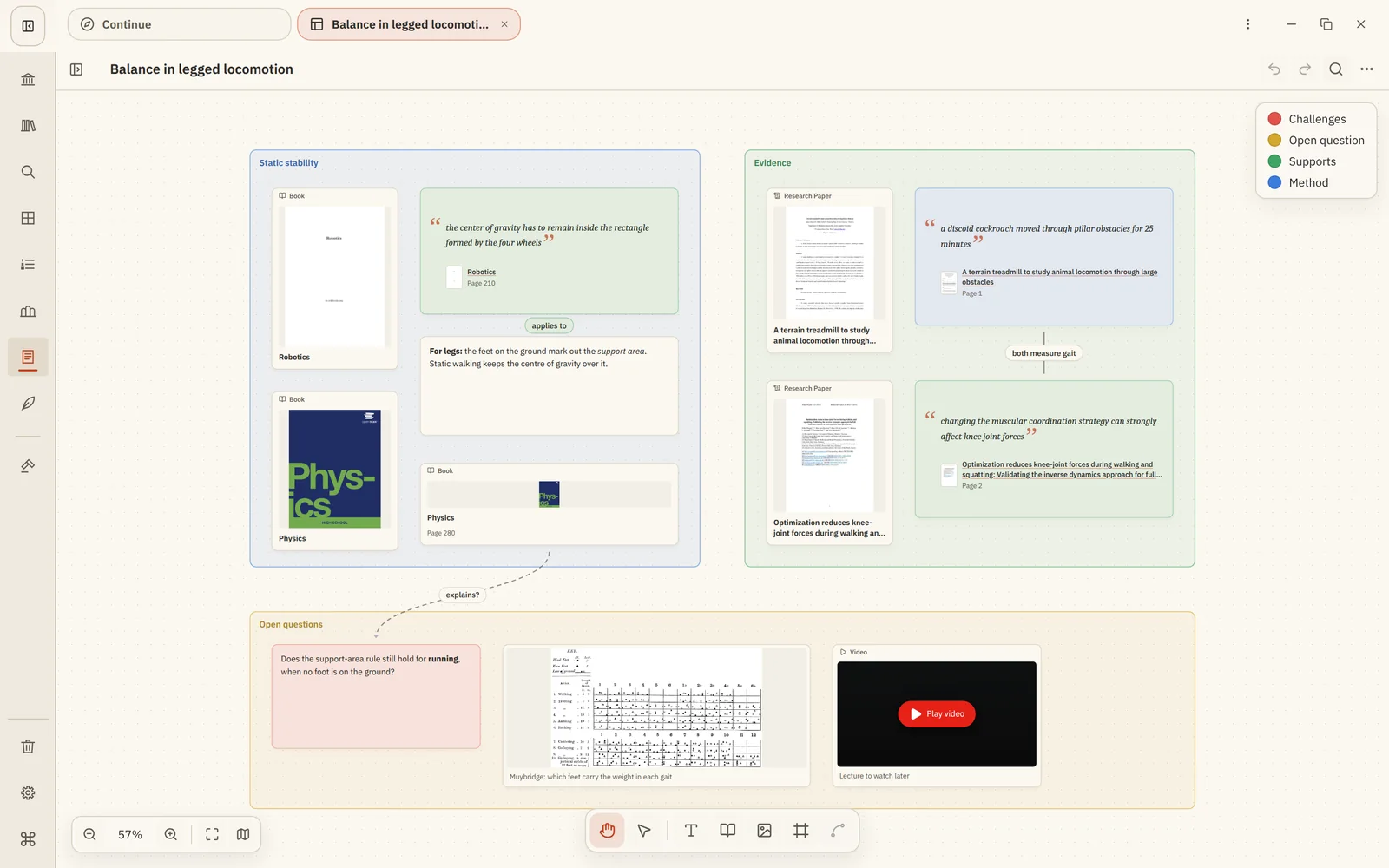
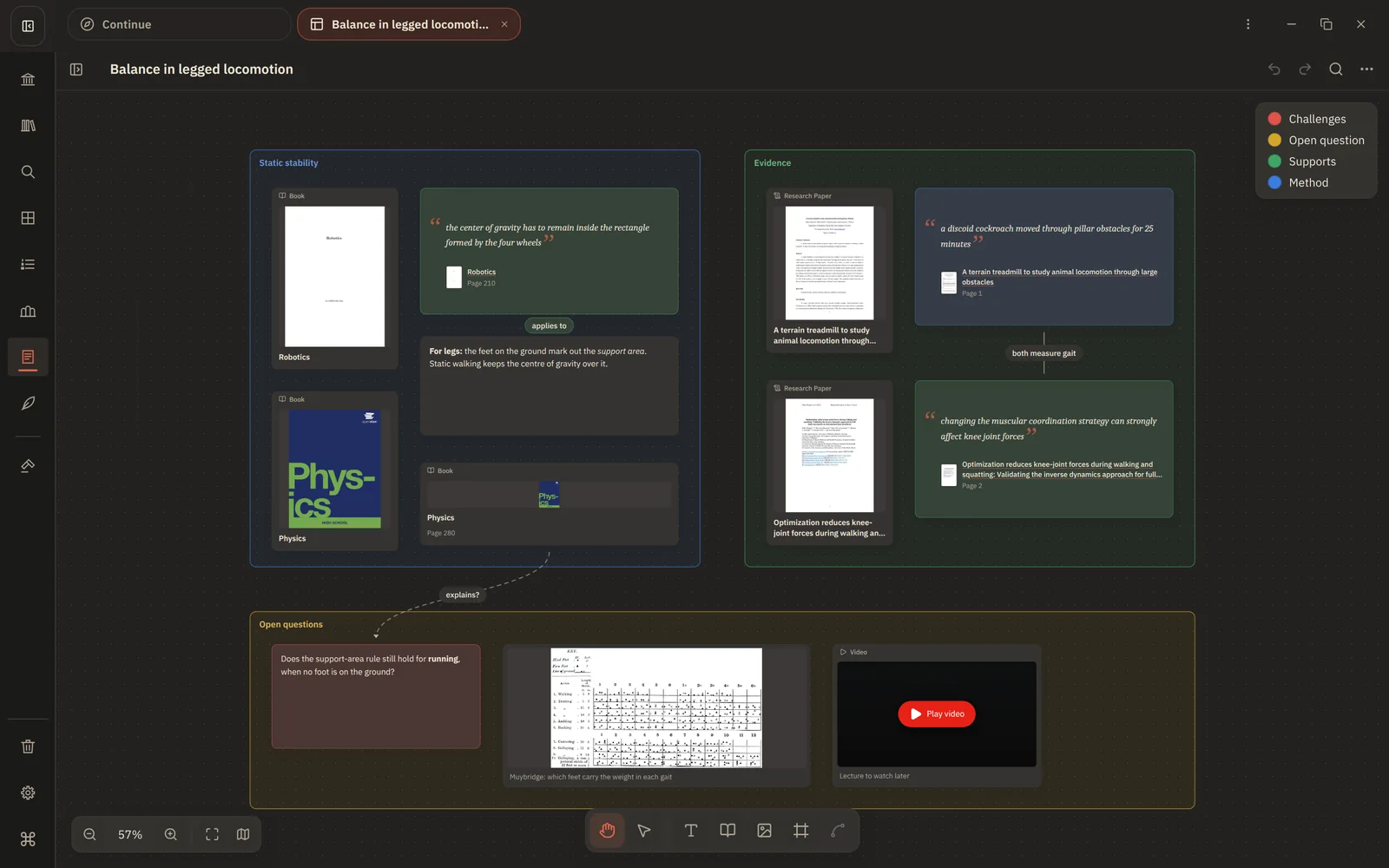
Boards suit the moments when a list isn't enough: comparing arguments across papers, mapping a topic before you write, planning a study session, or laying out evidence for and against an idea.
Create a board
Boards live in Notes, next to your notes. Choose + and then New canvas, give it a name, and start adding cards. A board saves as you work, and Undo reverses any change, including ones the AI made for you.
Add cards
Use the tool dock at the bottom of the board:
| Tool | Adds |
|---|---|
| Text card | Your own words, in Markdown. |
| Library Item Card | A book, paper, document or note from your library. |
| Image | A picture from your computer. You can also drop or paste images onto the board. |
| Add Frame | A named frame; with cards selected, it frames them. |
| Connect | A connection between two selected cards. |
You can also paste onto the board:
- a link copied in the reader, to make a location card for that page;
- text copied with Copy as quote in the reader, to make a quote card;
- a YouTube link, to make a video card;
- any other text, to make a text card.
Or drag books and notes onto the board from Library, Collections or Notes.
See Card types for what each card shows.
Move around
Drag empty space with the Hand tool to pan. Zoom with the mouse wheel or trackpad. Fit board brings everything into view. Find any card with Search board objects. For more, see Big boards.
Open what's on a card
Right-click a card and choose Open Source or Open Location to open the book at the right place, or the note it refers to. Removing a card from a board never changes the book or note it points to.
Next: Card types