Appearance
Highlights, notes and bookmarks
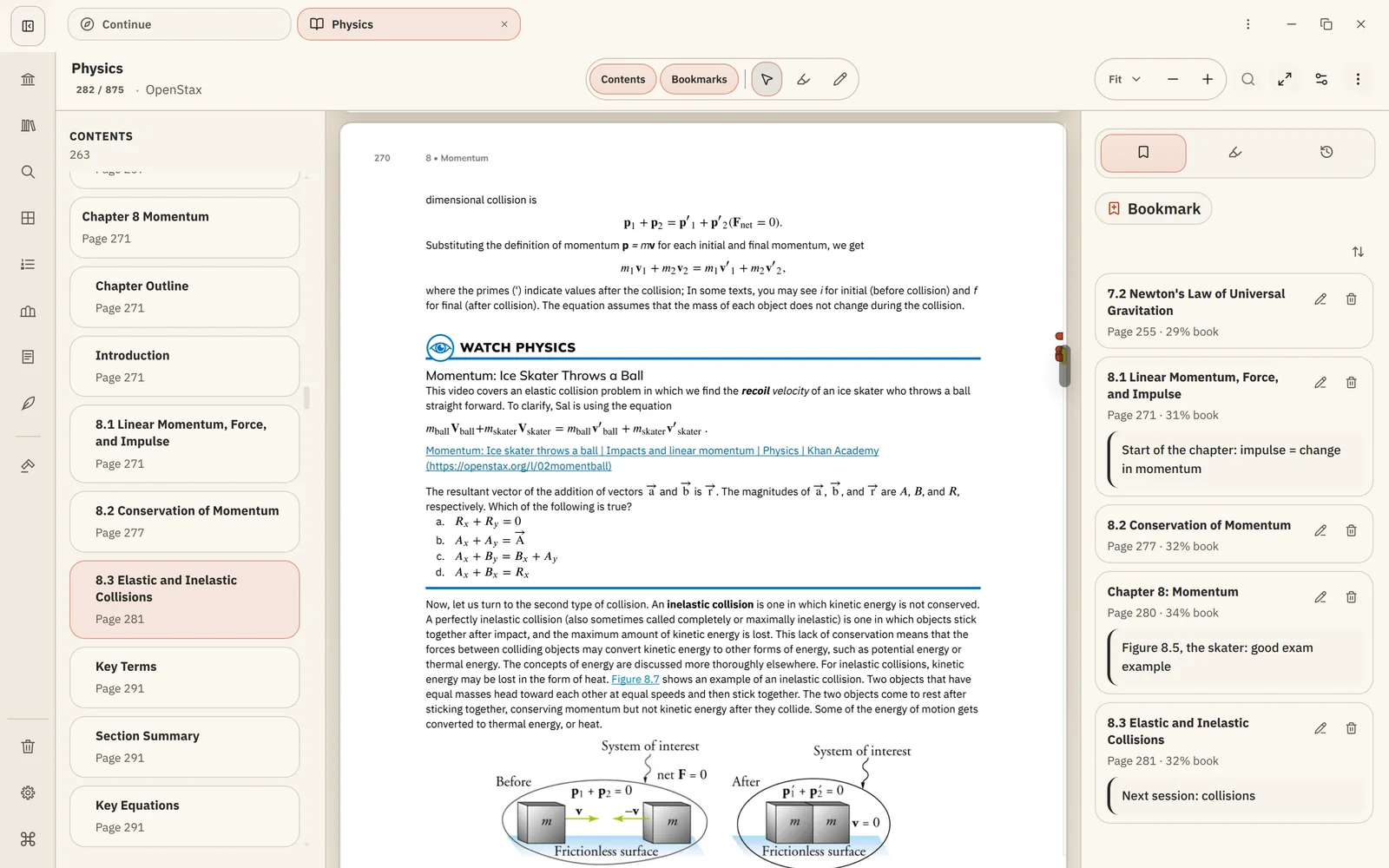
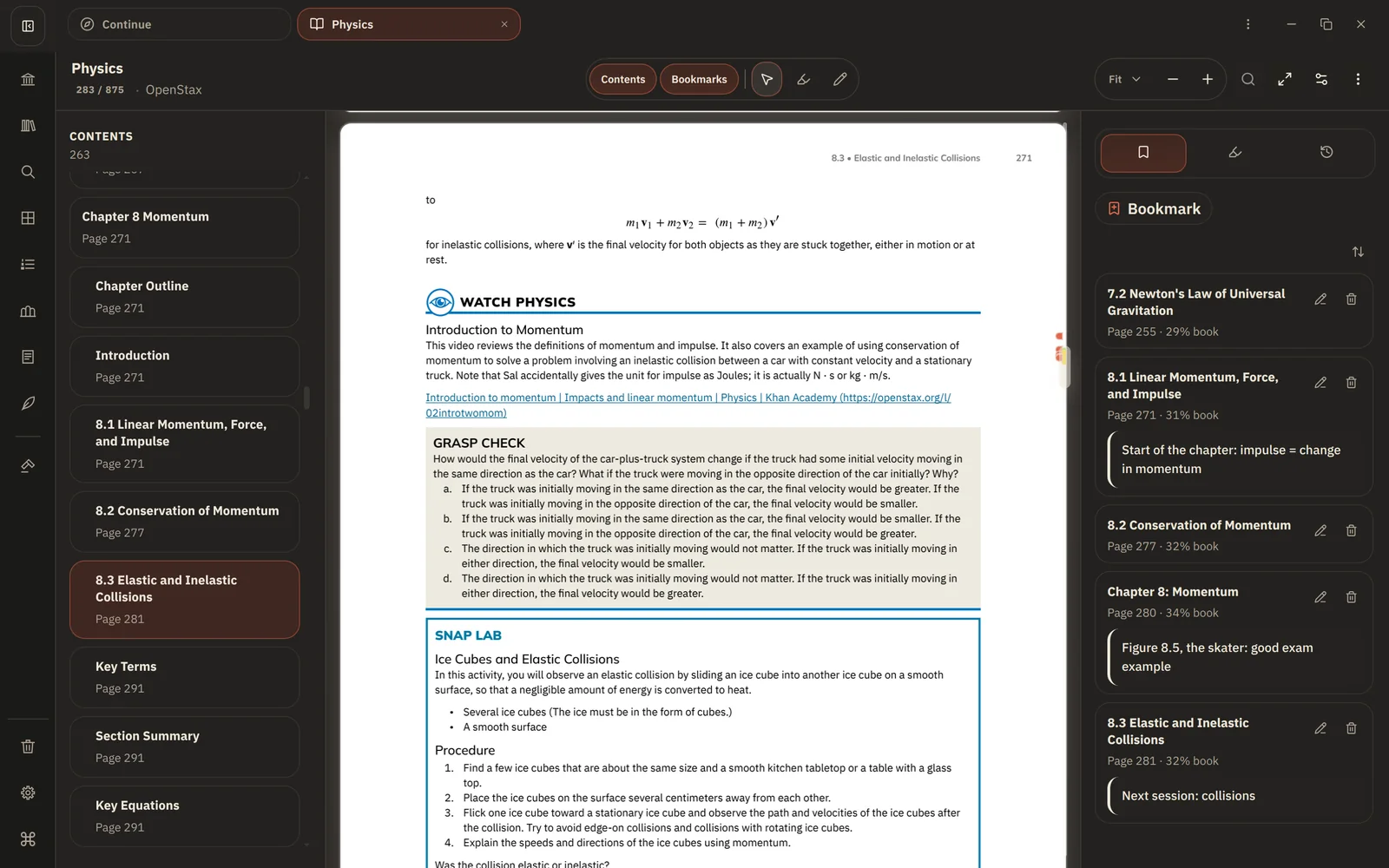
Highlight a passage
In a PDF or EPUB, choose the Highlight tool, then select the text. Pick a colour from the toolbar; colours mean whatever you decide.
Click a highlight to:
- add a note to it, such as a question or the idea in your own words;
- change its colour;
- delete it.
Every highlight and its note goes into the book's notebook.
In PDFs you can also draw on the page with the Draw tool.
Bookmark a page
Bookmark any page to come back to it, and add a note to say why. Bookmarks work in every format, including DjVu and comics. Open Bookmarks in the reader to see them all.
Right-click for more
Right-click a highlight or the page for:
- Copy as quote, to paste the passage into a note or onto a board with its source attached;
- Copy Link to Highlight or Copy Link to This Location, to link a note to this spot;
- Show in Notes, to open the book's notebook at this highlight.
Find them again
- In the book: highlights stay in place every time you open it, on every device.
- In the notebook: all of a book's highlights in reading order.
- In Search: Search finds your highlights and highlight notes across every book.
Next: Read offline