Appearance
Book notebooks
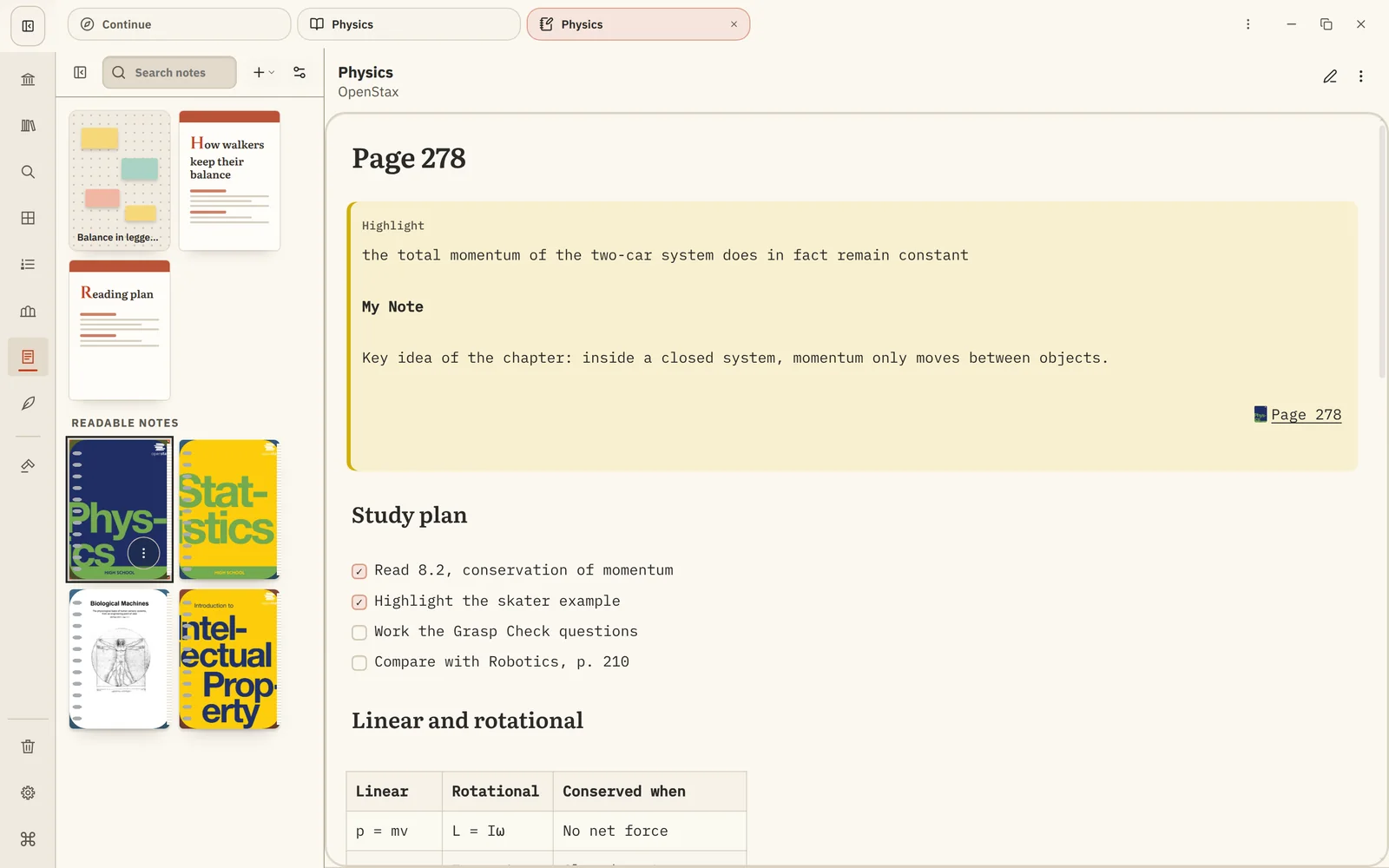
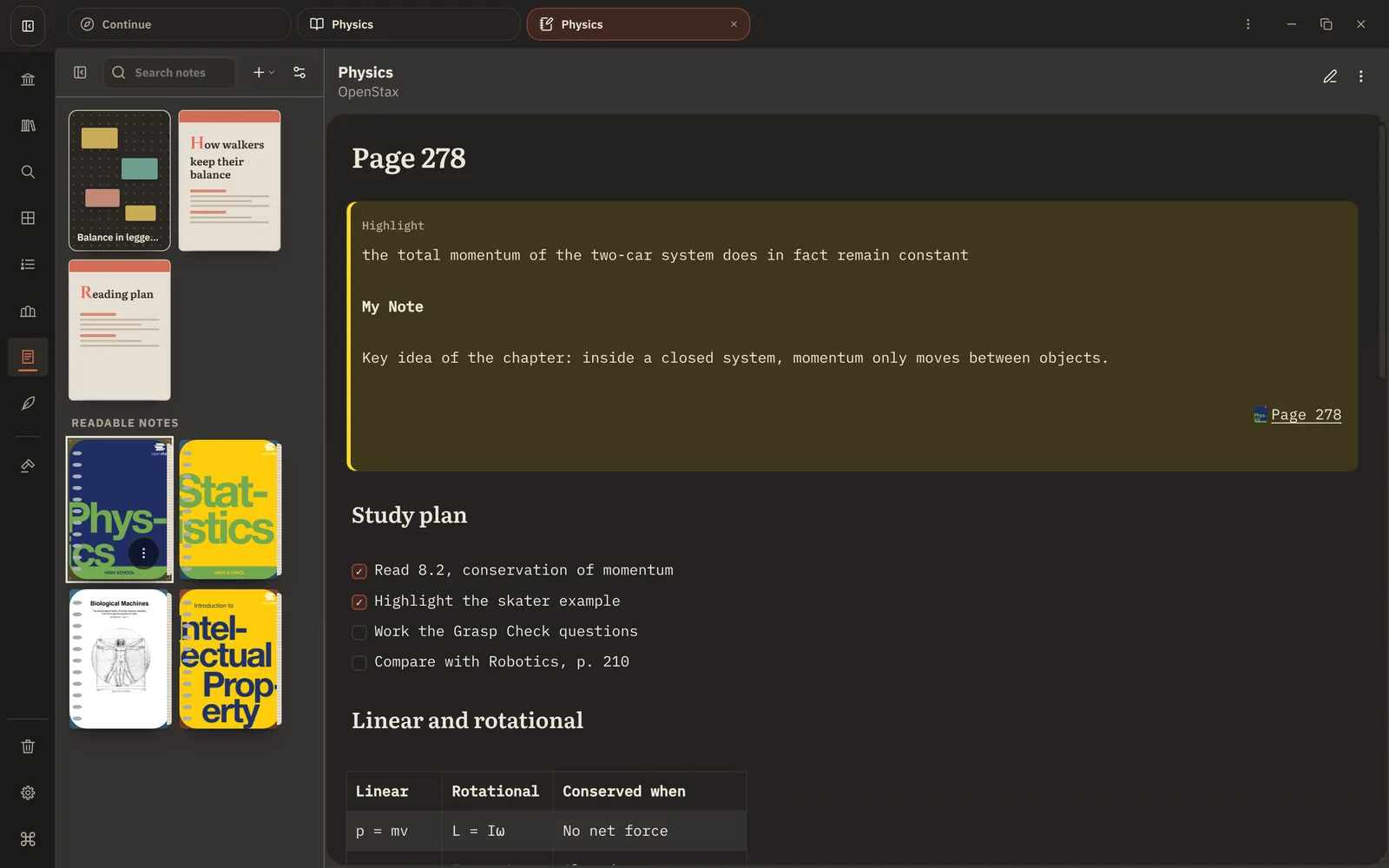
Every book you highlight gets its own notebook. It gathers your highlights, the notes you attached to them and your bookmarks in one page you can read, edit and add your own writing to.
What's in a notebook
- Highlights, in reading order, each shown as a quote block.
- Your highlight notes, under each highlight, labelled My Note.
- Bookmarks, as a linked list under a Bookmarks heading, with any notes you added to them.
- Your own writing, anywhere you like: summaries between sections, questions, a conclusion at the end.
Every highlight links back to its place in the book.
Open a notebook
- From the reader: choose Show in Notes from the reader's menu, or right-click a highlight and choose Show in Notes to jump to that one.
- From Notes: book notebooks appear in the sidebar with the book's cover and a count of highlights.
A notebook is created the first time you highlight or bookmark a PDF or EPUB.
Your writing is safe
When you've highlighted more since you last opened a notebook, it says Reader annotations changed since this notebook was last synced. Choose Refresh from Reader and the new highlights appear under New Highlights.
Refreshing only updates the highlight and bookmark blocks; everything you wrote around them stays exactly as it is. Deleting a highlight in the reader never deletes your writing.
Edit the highlight blocks themselves in the reader: a note written inside the notebook doesn't change the highlight's note in the reader.
Highlights already in a PDF
If a PDF arrives with highlights made in another app, Xandria turns them into a notebook for that book too, so earlier reading isn't lost.
Next: How boards work