Appearance
Link to pages and passages
A note is most useful when you can get back to where an idea came from. In Xandria, a link in a note can open a book at the exact page, passage or highlight, and bring you back to the note when you're done.
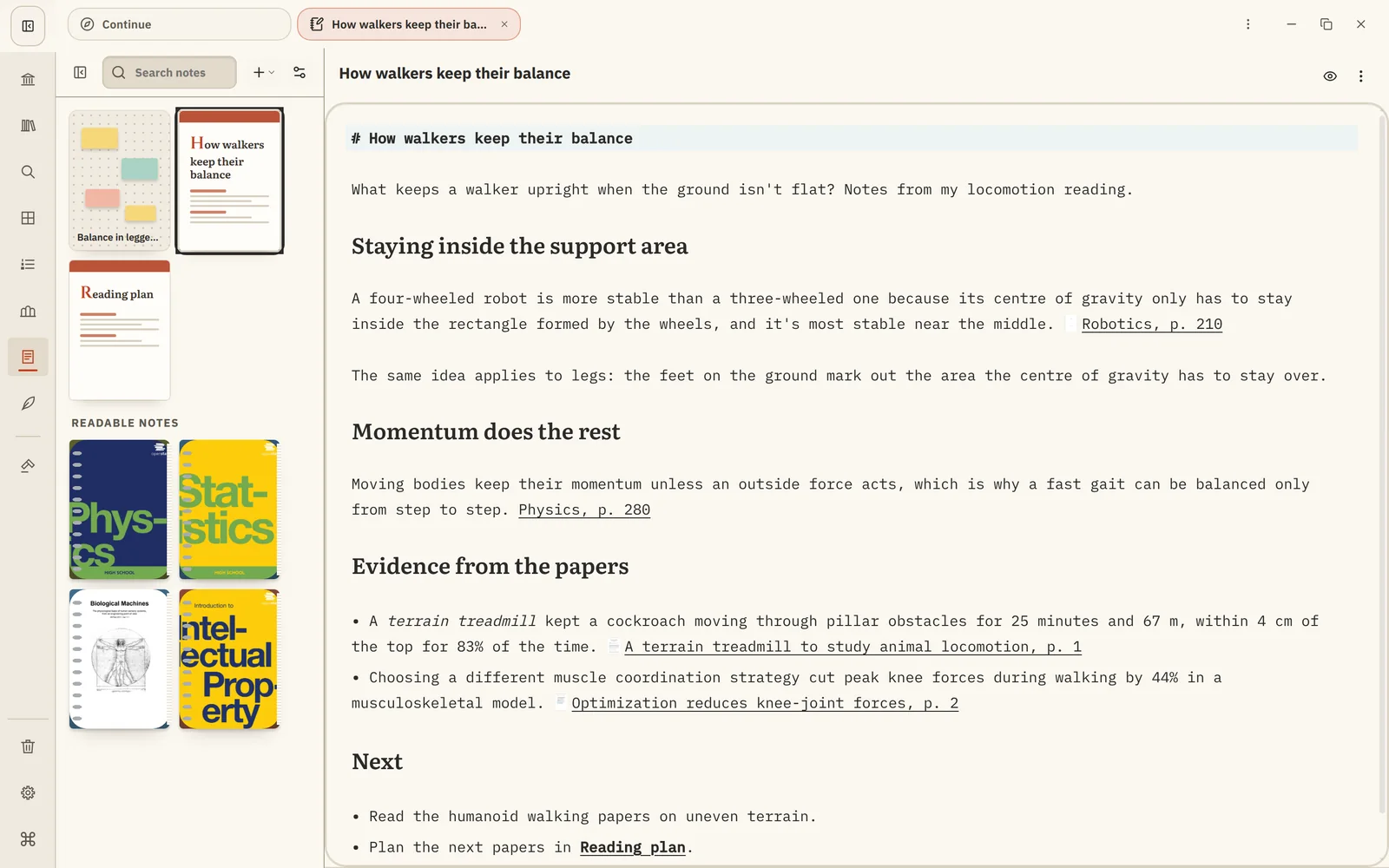
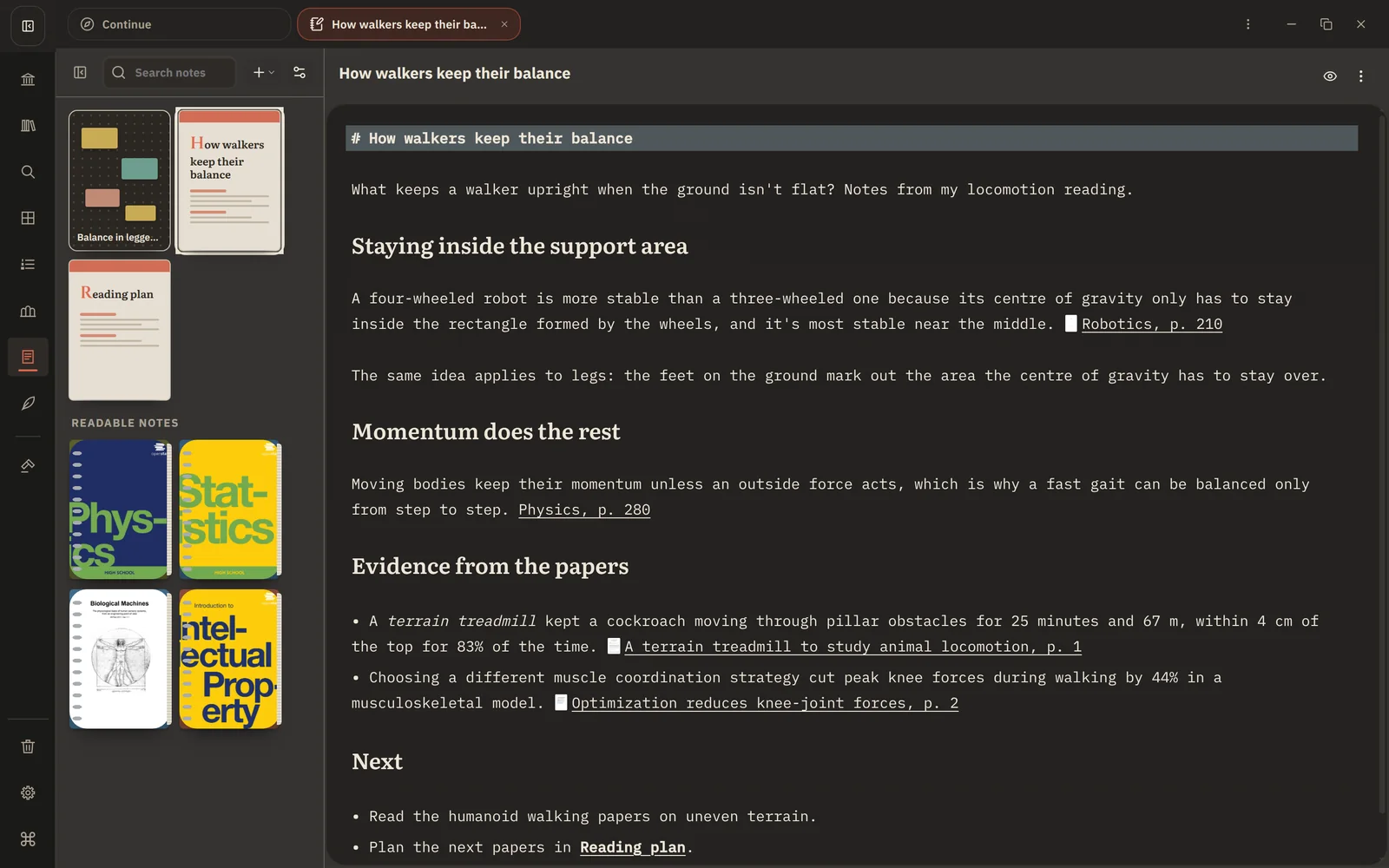
Copy a link in the reader
| To link to | Do this |
|---|---|
| A highlight | Right-click it and choose Copy Link to Highlight. |
| The spot you're reading | Right-click the page and choose Copy Link to This Location, or press Ctrl+K. |
Links work in PDFs, EPUBs and comics. A link names the book and the page (or chapter, for EPUBs), like Physics, p. 112.
Paste it into a note
Paste the link anywhere in a note. It appears with the book's small cover in front, so you can see at a glance which source it points to. You can change the link text to anything you like; the target stays the same.
Follow a link
- Ctrl+click a link (⌘-click on a Mac), or put the cursor in it and press Ctrl+Enter.
- The book opens at that exact place, with the highlight shown.
- Close the reader or go back, and you return to the same note, with your cursor and scroll position where they were.
An ordinary click just places the cursor, so editing a note never jumps you into a book by accident.
Links in other places
The same links work on Canvas as quote and location cards, and in notes the Agent writes for you.
Next: Book notebooks