Appearance
Study a textbook chapter
You'll end up with a chapter you've actually worked through: the key passages highlighted, your own summary beside them, and links that take you straight back to any page when it's exam time or you need it at work.
You need a PDF or EPUB textbook in your library.
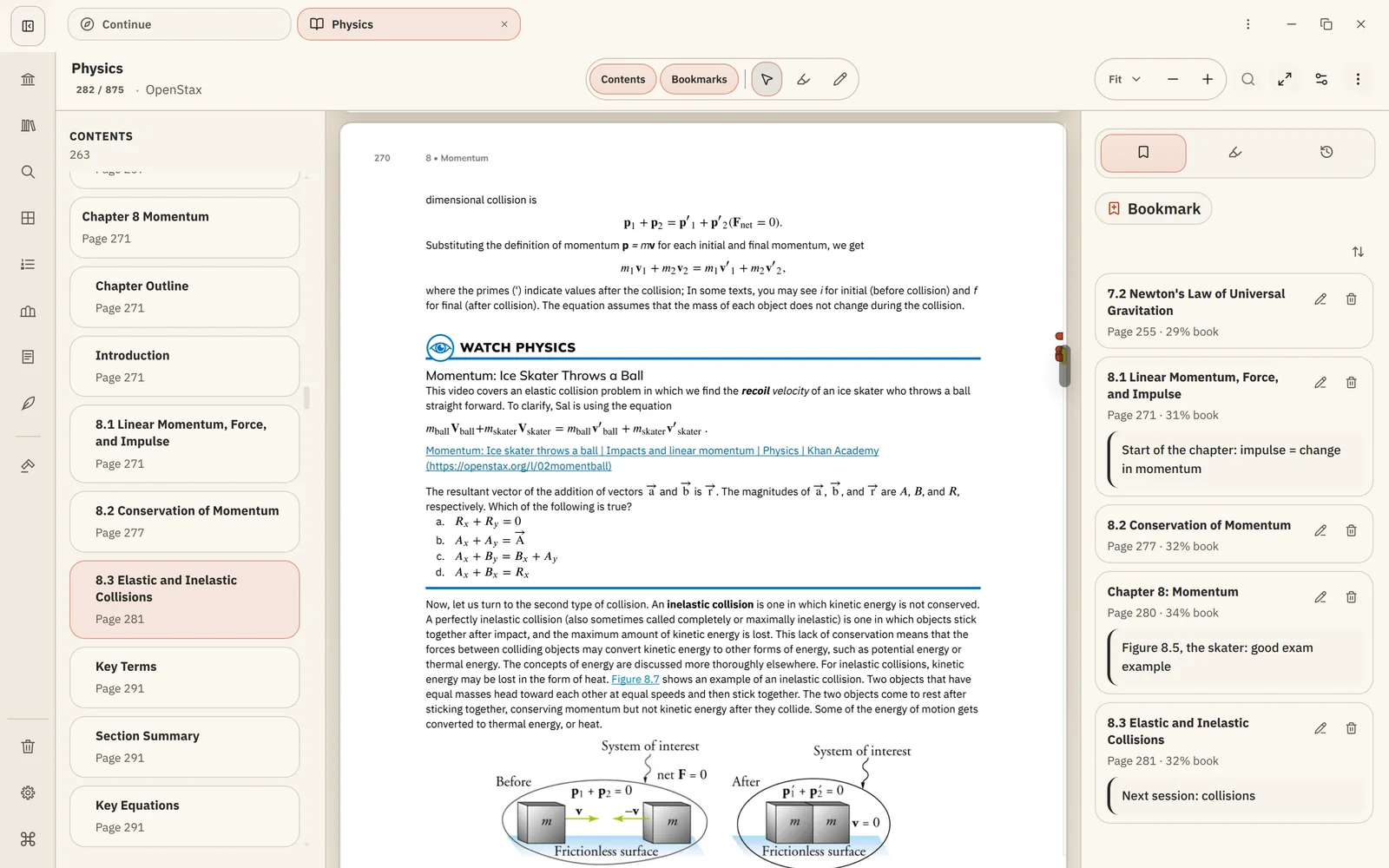
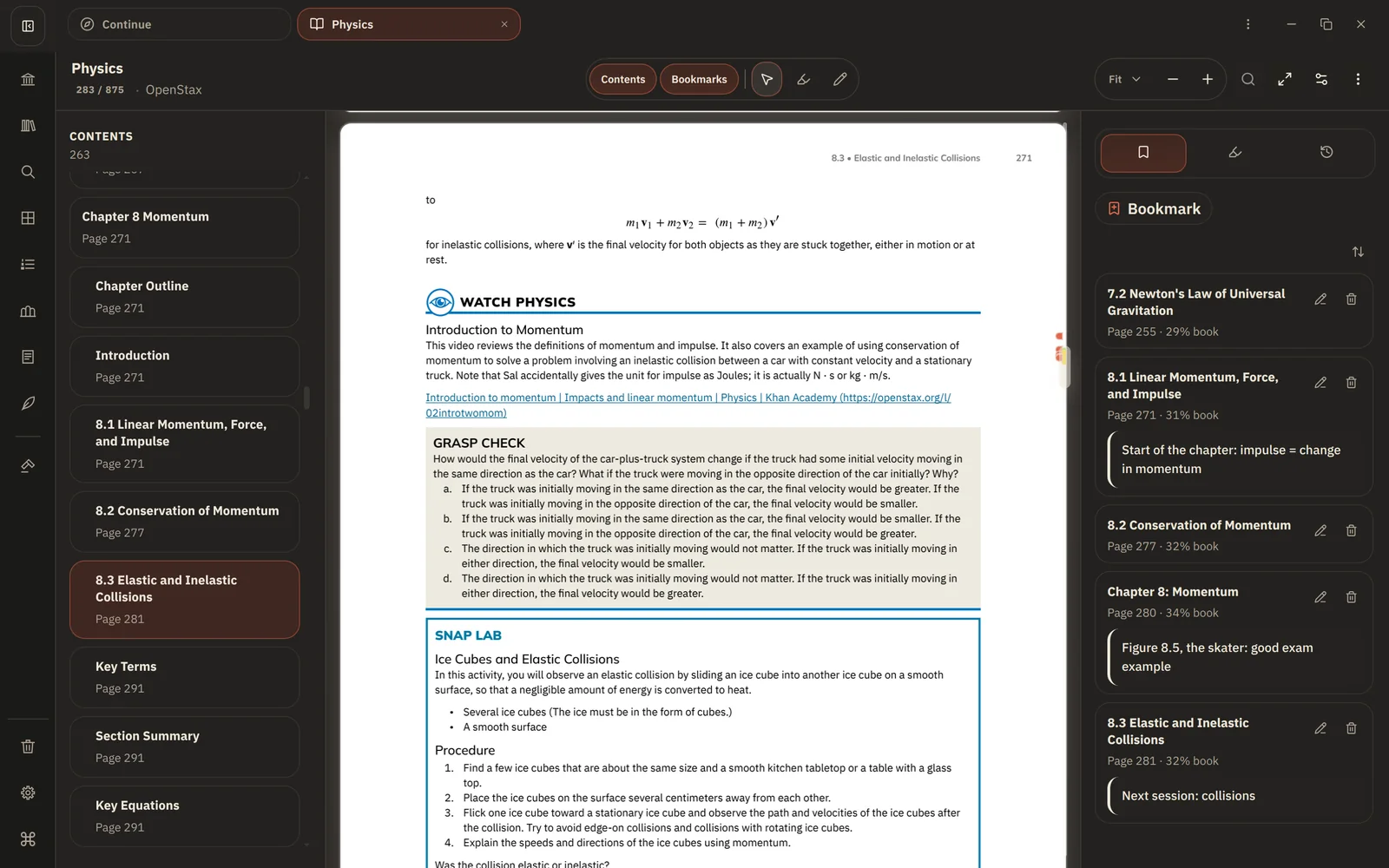
1. Open the chapter
Open the book from Library or Home. Use Contents in the reader to jump to the chapter. Xandria remembers your page, on every device.
2. Highlight as you read
Choose the Highlight tool, then select the passages that matter. Use colours to mean something consistent, such as yellow for definitions and green for examples. Click a highlight to add a short note: a question, or the idea in your own words.
Bookmark pages you'll want again, like a key diagram or a table of formulas.
See Highlights, notes and bookmarks.
3. Open the notebook beside the book
Choose Show in Notes from the reader's menu. Then drag the Notes tab to the right edge of the window to work with the book and its notebook side by side.
The notebook already holds every highlight from this book, in reading order, with your highlight notes under each one. See Book notebooks.
4. Write the summary
Write in the notebook between the highlights: what the section was about, how the ideas connect, what still confuses you. Your writing is kept separate from the highlight blocks, so new highlights never disturb it.
To point at a figure or a worked example, right-click it in the reader, choose Copy Link to This Location, and paste the link into your summary.
5. Review later
When you come back:
- Open the notebook and Ctrl+click any highlight or link to jump to that page.
- Choose Preview Slides to step through your summary, section by section.
- Stuck on a passage? Select it and ask the Agent to explain it, with citations to the textbook.
Related
- Link to pages and passages
- Organize with Collections, to keep a course's books and notes together