Appearance
Tour of the workspace
Xandria is one workspace for everything you read and write. Books, notes and boards open side by side in tabs, so you never lose your place switching between them.
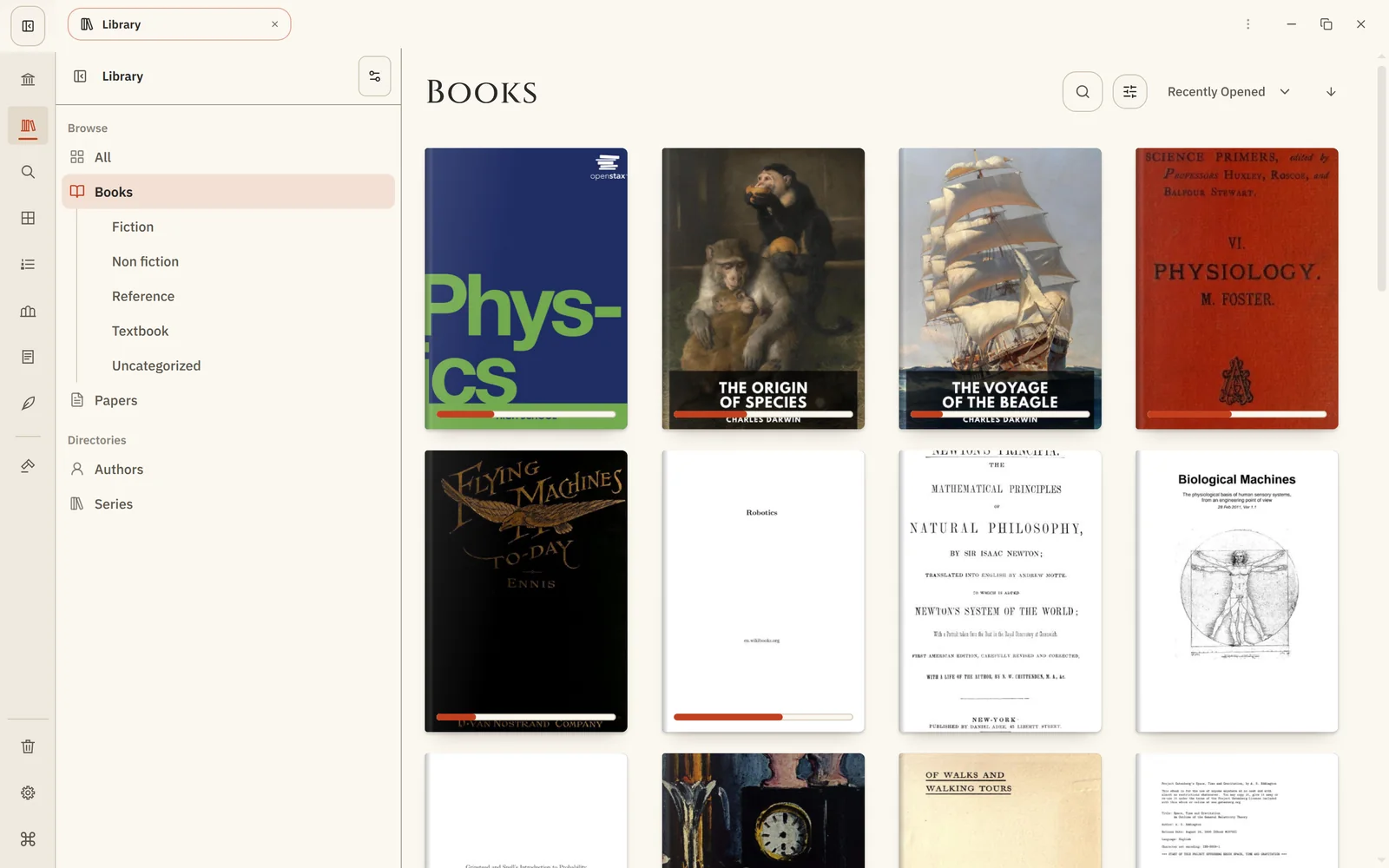
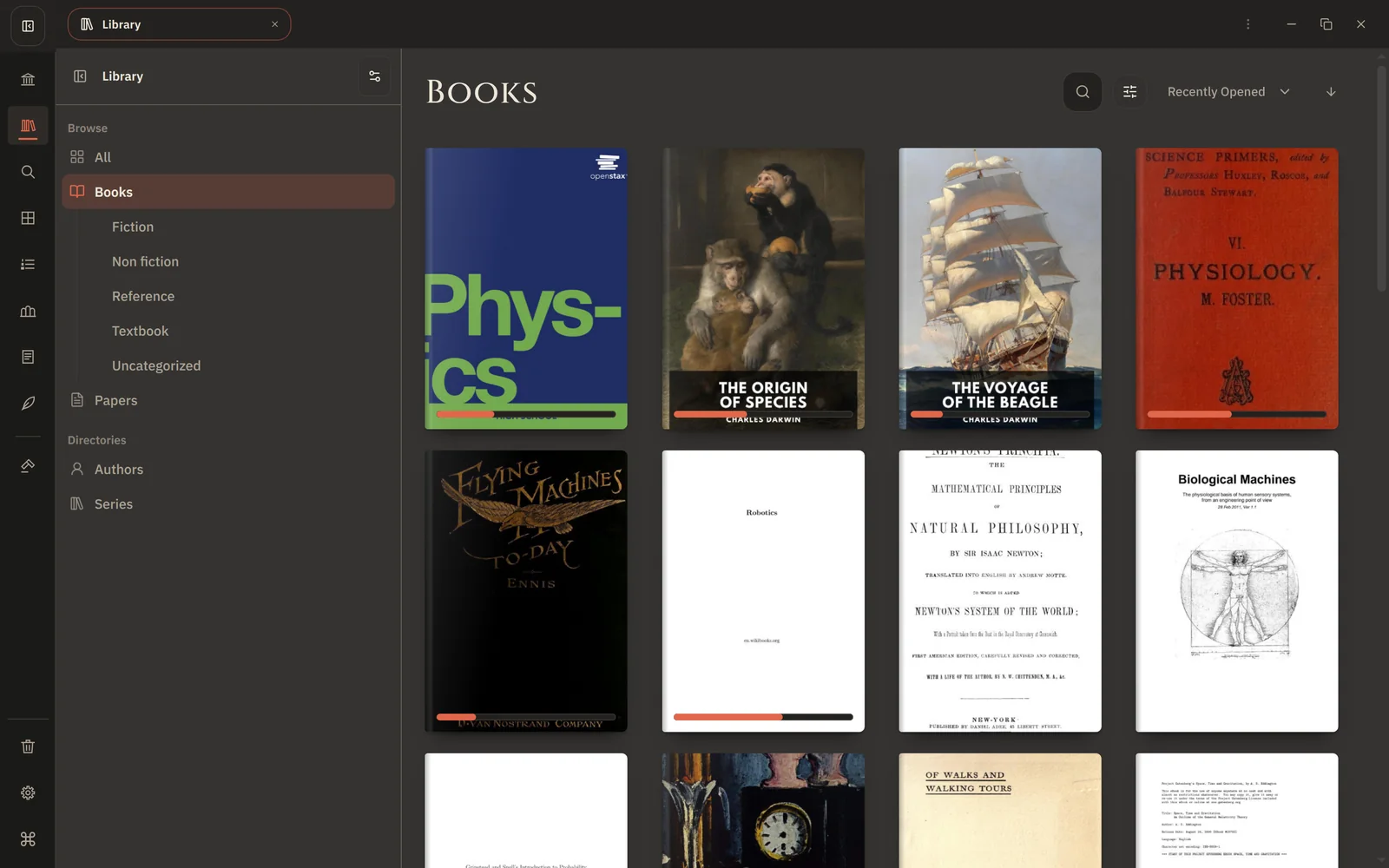
The rail
The rail on the left takes you to each part of your library:
| Home | What you're reading now, ready to resume, and what you saved for later. |
| Library | Every book, paper and document, with filters for author, subject and more. |
| Search | Find words, passages and ideas across everything. |
| Collections | Your own folders of books, papers and notes, including ones that fill themselves. |
| Reading Lists | What to read next, in order. |
| Domains | Your library arranged by field and topic. |
| Notes | Your notes, book notebooks and Canvas boards. |
Below them are the Agent (if you use AI) and Manage Library, where you add books. At the bottom are Trash, Settings and the Command Palette. You can hide or reorder the first group in Settings → Desktop → Navigation Rail; hidden places stay reachable from the command palette.
Tabs and split panes
Everything opens in a tab: a book, a note, a board, a search. Drag a tab to the side of the window, or choose Split Right or Split Below from its menu, to work with two things at once, such as a chapter on the left and your notes on the right.
Xandria remembers your tabs and panes, so the workspace is as you left it when you come back.
The command palette
Press Ctrl+K (⌘K on a Mac) to open the command palette, then type what you want: a place, an action or a setting. It shows each command's shortcut, so it also teaches you the keyboard.
In the reader, Ctrl+K copies a link to where you are instead. See Link to pages and passages.
Some handy shortcuts:
| Shortcut | Action |
|---|---|
| Ctrl+Shift+R | Home |
| Ctrl+Shift+L | Library |
| Ctrl+Shift+S | Search |
| Ctrl+Shift+N | Notes |
| Ctrl+Shift+A | Agent |
| Ctrl+W | Close the tab |
| Ctrl+Shift+T | Reopen the last closed tab |
| Ctrl+, | Settings |
You can change any shortcut in Settings → Hotkeys. See all of them in Keyboard shortcuts.
Make it yours
Choose a theme in Settings → Appearance: Stone by day or Basalt at night. Every surface, from covers to Canvas colours, follows it.
Next: Local mode